If you are in the process of gathering images to supplement your life story writings, you will generally be using photos from your own life.
But don't feel you have to limit the images in your book to what you have on hand. If you want to fill in some holes or jazz up the visuals in your project, there are a lot of places to get great images that are free, high quality, and don't trample on someone else's copyright.
Why You Need High-Res Images for Print - and How to Get Them
As a personal history book designer, this is probably the number one problem I face with clients on a daily basis. A client will give me an image she pulled off the internet and want it to appear as a full page in her book. But there aren't enough pixels, so an image that looks great on the screen would look blurry and pixilated in print. Because you need more than three times the number of pixels for print use than for internet use.
(For more detailed information about resolution for print projects, see these posts:)
The Funnel Method for Scanning Photos - Infographic
What You Need to Know About Jpeg Compression
Google Image Search
I'm going to show you two little simple tools you can use in Google Image search to find the right kind -- and the right size -- images for your project.
Here's an example of an image search I did for my buddy Neil. I just put Neil Armstrong in the search string and clicked and this is what came up. Problem is, I don't know what size any of these images are, or if they are safe for me to use without getting sued.

Random Google image search will bring up a lot of images and very little other information.
What most people do is they just find the one they like, click on it, and download it. And usually it will be too small, because most of these images are made to look good on a screen, not on a printed page. What's worse, they could be violating copyright law and not even know it. (Does it matter? Just ask a blogger we know who used a Getty image without permission on his non-commercial educational blog. He had to pay a very big fine and pull down his website. Not pretty.)
First of all, here's how to find an image that is big enough to use:
In the menu bar, click on Search Tools. Then click on the tab labeled "Size" and click "Large." (You can specify even larger by using the "Larger than" tab.) This will only show you images that are larger than the lowest possible printing threshold, eliminating anything that is ridiculously small.

Choosing the "Size" option in the Search Tools will only show you larger images.
Now you have some larger images to choose from, but you still don't know if any of these are in the public domain -- i.e. relatively safe for you to use from a copyright standpoint.
The next tool you want to use is the "Usage Rights" tool. You can choose "Labeled for reuse" or "Labeled for non-commercial reuse" (if your book will not be sold to the general public). Note that it says "labeled," not "guaranteed." There are no absolute guarantees without checking with the copyright owner, because, hey, it's the internet, and sometimes people lie on the internet. But at least it's a starting point.
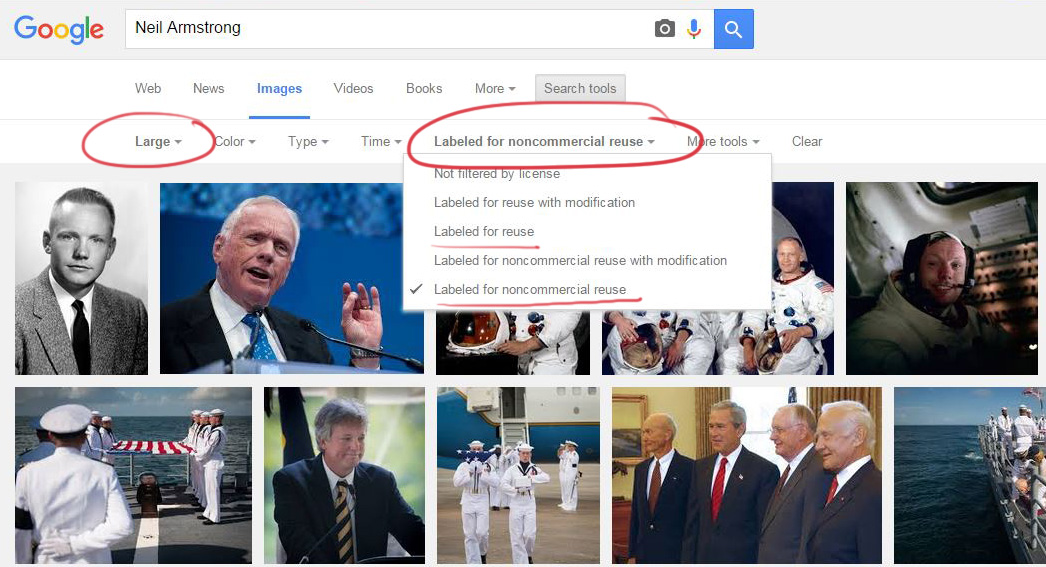
Choosing the "Usage Rights" tab will bring up this pulldown menu.
Now it only shows images that might be safe to use, and that might be large enough. At least you've narrowed down your choices considerably. But -- how large is large, really? Here's how to tell.

Choosing the "Show Sizes" tool will give you pixel dimensions of the photos available.
Choosing the "Show Sizes" tool will give you pixel dimensions of the photos available. Now you know how large is "large."
How do I know what size photo I need?
The minimum pixels you need to look good in print is 200 ppi; the gold standard is 300 ppi. (Screen resolution is only 72 pixels per inch, which is one of the reasons why a lot of internet-yanked images look crappy in print.)

So let's take the first photo on the top left, the black and white headshot.
At 798 x 1180 pixels, you could decently print that at about 2.5 x 4 inches to 4 x 6 inches.
Here's the math. (Some of you can do this quickly in your head, but this is how it looks on a calculator.
798 pixels ÷ 200 ppi = 3.99 inches. 1180 pixels ÷ 200 ppi = 5.9 inches.
About 4 x 6 inches at minimum acceptable quality.
798 pixels ÷ 300 ppi = 2.66 inches. 1180 pixels ÷ 300 ppi = 3.93 inches.
About 2.5 x 4 inches at higher quality.
So, if you wanted to use that photo to cover an 8 x 10 page, it's going to be too small. Another thing to consider is that even if an image has enough resolution (pixels), it may be compressed (saved at a low quality) and still look bad. Zoom in on the image to see if there are any blocky "artifacts" or jagged edges. If so, you may want to look for a better image, because those artifacts will definitely show up on the printed page.
How can I be sure the image I've chosen is free from copyright restrictions?
The sad fact is that you can't be 100% sure, unless you have downloaded the image from a site on which the rights usage restrictions are stated very clearly. If you are just distributing your book to your family, it probably won't be a big deal, although using a copyrighted image for any purpose without permission is technically illegal. (So-called "fair use" rights for educational purposes are narrow and ambiguous, so you can't necessarily hide under that umbrella.) If you will be distributing your book widely or selling it, you want to make sure you have vetted all your images before you go to print!
BUT -- there are some sites that are pretty safe bets. Wikimedia Commons and Wikipedia have the usage rights stated very clearly on each image, and most of them are in the public domain or the copyright holder has donated the image for free public use. They have thousands of historical images that are free for anyone to use. The Library of Congress and many university libraries and historical societies have photo collections that are free or available for a small fee (make sure you follow their attribution instructions).
If you are looking for more generic images, you can purchase an image to use from a stock photo site. Some are quite expensive, but others, such as Dollar Photo Club, are very reasonable.
For more info on this topic, check out this post:

Remember these? E ticket rides were the best. Although many images on the internet are copyrighted, many such as this one are available for use in your project via Creative Commons licenses.